Scrib Notes app icon Scrib Notes

Notes that stay organized

Groups, natural-language reminders with a days-until countdown, a read-later feed, and Done — private on your iPhone.

Scrib Notes Scrib tab with grouped notes and one-tap Done buttons

Private. On your device. No Scrib Notes account, no ads, no analytics SDKs. Your tabs, your keys, your data.

On-device storage Local reminders Your own AI keys

Five tabs

Everything in one place

Jump between Scrib, Reminders, Done, Feed, and Settings — or hide the tabs you don’t need.

Scrib

Notes that stay organized

Groups, drag-and-drop, and Done in one tap.

  1. 1

    Add a noteTap + and choose New Scrib. Notes show a timestamp and sort Newest First by default (or switch to Oldest First).

  2. 2

    Organize with groupsCreate a New Group, drag notes in or out, drop them in Ungrouped, or use Group options to rename, delete, or Mark All Done.

  3. 3

    Finish in one tapHit Done on any note to send it to the Done tab. Use Edit to select and clean up in bulk.
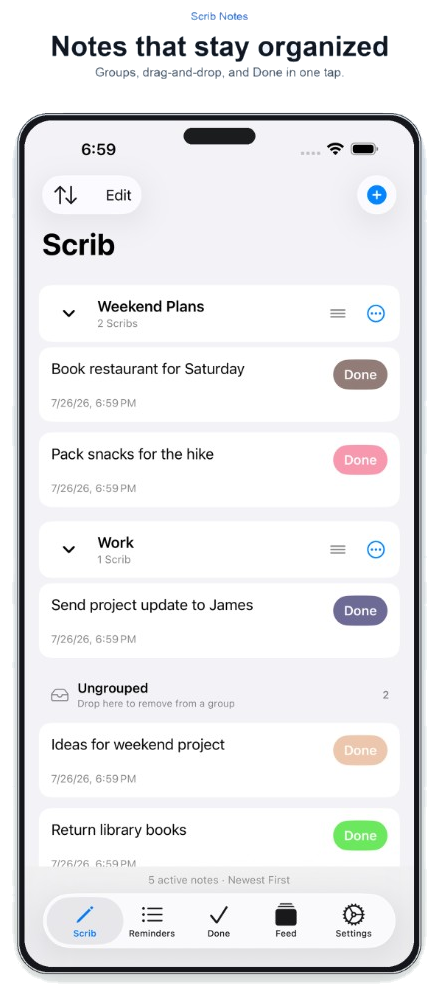
Scrib tab showing grouped notes with colorful Done buttons

Reminders

Reminders that understand you

Type naturally, nudge early, or repeat daily until done.

  1. 1

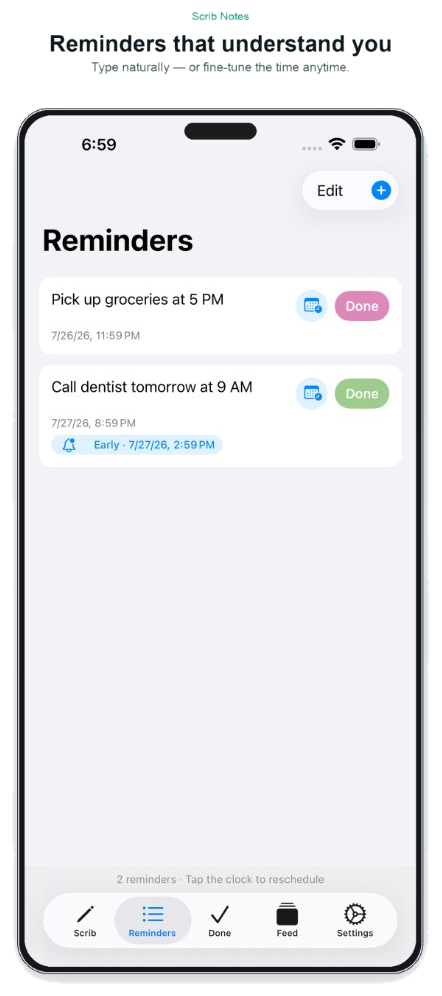
    Write what and whenTap + and type something like “Pick up groceries tomorrow at 5 PM.” Scrib Notes parses phrases such as “tomorrow at 9 AM,” “in 30 minutes,” or “next Friday at 3.”

  2. 2

    Daily or early alertsTurn on Remind me until done for a daily local notification until you finish, and optionally Add an earlier reminder for a heads-up.

  3. 3

    See the countdown, then finishUpcoming items show how many days until they’re due (or Past due when late). Tap the clock to reschedule, or Done when you’re finished — alerts stay on your device.

Reminders tab with natural language tasks, early alert tags, and days-until labels

Done

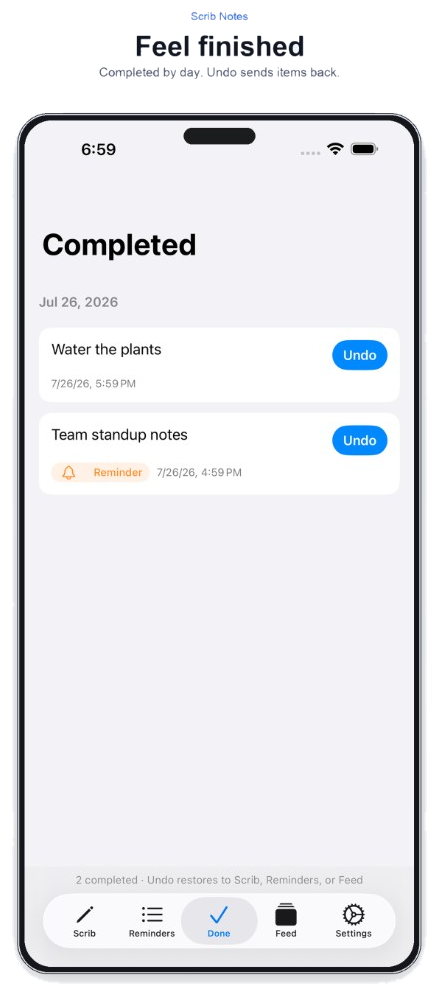
Feel finished

Completed by day. Undo sends items back.

  1. 1

    Browse by dateOpen Done to see finished scribs, reminders, and articles you marked as read, grouped under each day.

  2. 2

    Spot reminder historyItems that had alerts keep a Reminder tag so you can tell timed tasks apart from plain notes.

  3. 3

    Undo anytimeTap Undo to restore an item to Scrib, Reminders, or Feed — whichever place it came from.

Completed tab listing finished items by day with Undo buttons

Feed

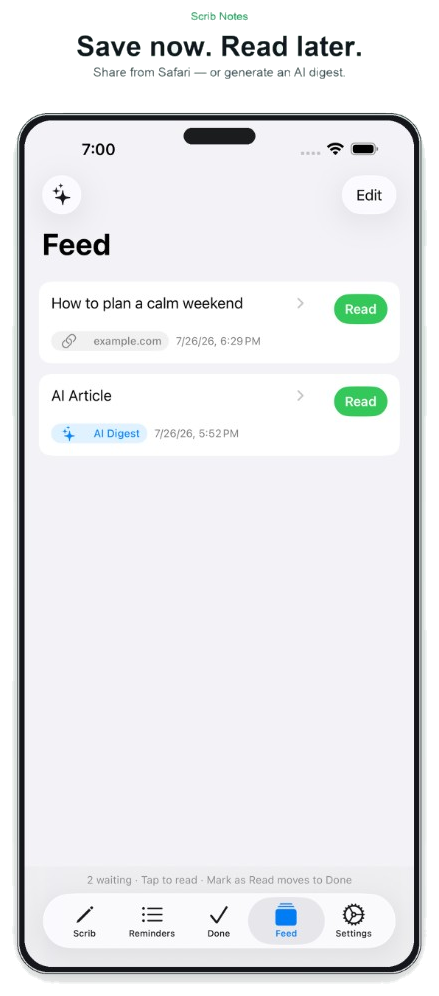
Save now. Read later.

Share from Safari — or generate an AI digest.

  1. 1

    Share into Scrib NotesFrom Safari or other apps, use the share sheet and pick Scrib Notes. Links and text land in your Feed.

  2. 2

    Read offline-friendlyTap an article to open the in-app reader (with your chosen page theme). When you’re done, tap Read to move it to Done.

  3. 3

    AI Generate (optional)Tap AI Generate (sparkles) for an interest-based digest. You supply your own Claude or ChatGPT API key — scribs and reminders stay out of the prompt.

Feed tab with saved articles and an AI Digest item

Settings

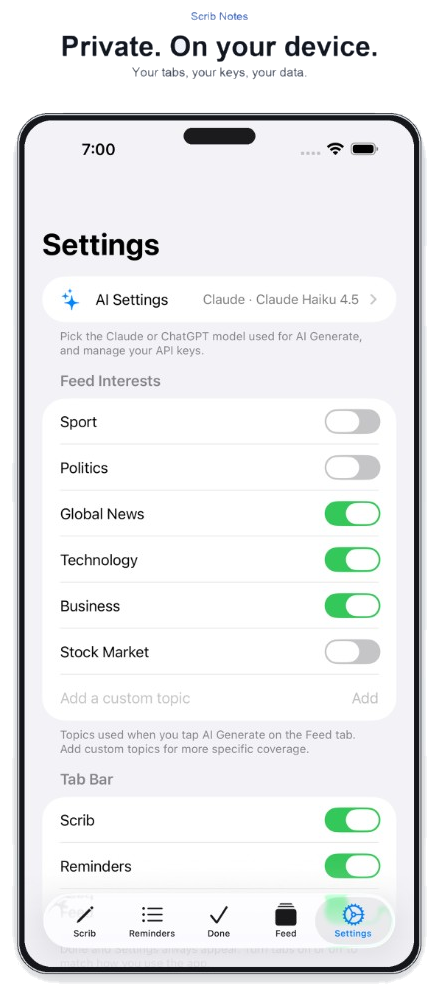
Your tabs, your keys, your data

Tune AI, reader theme, tabs, and local data.

  1. 1

    AI SettingsChoose Claude or ChatGPT, pick a model, and manage API keys in the iOS Keychain. Customize the AI Prompt Template if you want.

  2. 2

    Feed & readerSet Feed Interests (plus custom topics) for AI Generate, and choose an Article Reader Page Theme — White, Sepia, Gray, or Black.

  3. 3

    Tabs & cleanupShow or hide Scrib, Reminders, and Feed. Pick your Main Screen. Delete completed items, clear active scribs and reminders, or wipe all local app data.

Settings screen with AI model, feed interests, and tab toggles

Guide

How to use every feature

A quick reference for day-to-day use — the same workflows built into the app.

Scribs & groups

  1. Open the Scrib tab, tap +, and choose New Scrib or New Group.
  2. Use Sort for Newest First or Oldest First, or Edit to select and drag notes in bulk.
  3. Drag notes into groups, drop them in Ungrouped, or use Group options to rename, delete, or Mark All Done.
  4. Collapse groups you don’t need right now; expand when you’re ready.
  5. Tap Done on a note to archive it under the Done tab (Completed list).

Natural-language reminders

  1. Allow notifications when iOS asks — reminders are scheduled locally on your phone.
  2. Tap + and describe the task with a time phrase (e.g. “Call dentist tomorrow at 9 AM”).
  3. Adjust the When picker if needed. Optionally enable Remind me until done (daily alerts) and Add an earlier reminder.
  4. In the list, check days until (or Past due), and tap the clock icon to reschedule.
  5. Tap Done when finished, or use Edit to delete reminders you no longer need.

Feed & share extension

  1. In Safari (or another app), open Share and choose Scrib Notes.
  2. Return to the Feed tab — shared links and text appear as waiting items.
  3. Tap a title to open the reader; page content and images can cache for offline-friendly reading.
  4. Tap Read to move the item to Done (accessibility label: Mark as Read).
  5. Use Edit to remove articles you don’t want to keep.

AI Generate

  1. In Settings → AI Settings, manage Anthropic or OpenAI API keys and choose a model.
  2. Set Feed Interests (and optional custom topics) for the kinds of stories you want.
  3. Optionally edit the AI Prompt Template — placeholders fill in today’s date, interests, and recent feed titles.
  4. On the Feed tab, tap AI Generate (sparkles). Generation only runs when you ask.
  5. Read the digest in Feed; your scribs, groups, and reminders are not included in the AI prompt.

Done history & undo

  1. Open Done to review everything you’ve finished, grouped by calendar day.
  2. Tap Undo to send a scrib back to Scrib, a reminder back to Reminders, or an article back to Feed.
  3. Swipe to delete completed entries you don’t want to keep.
  4. In Settings, Delete All Completed clears the whole history in one step.

Customize & manage data

  1. Toggle Scrib, Reminders, and Feed in Settings → Tab Bar (Done and Settings always stay).
  2. Choose Main Screen for what opens after a cold start.
  3. Under Article Reader, set Page Theme to White, Sepia, Gray, or Black.
  4. Check Statistics for tasks finished, reminders set, articles read, and streaks.
  5. Delete All Scribs & Reminders, or Clear App Data to wipe local stores, feed, article cache, AI keys, and pending notifications on this device.

Start scribbling

Free-form notes, smart reminders with daily-until-done, read-later, and optional AI digests — kept on your iPhone.